Runs your sketch
Arduino
Brain
Loading part…
digitalRead() reads an input pin
Toggle an LED with a pushbutton using internal pull-up resistor on pin 2.
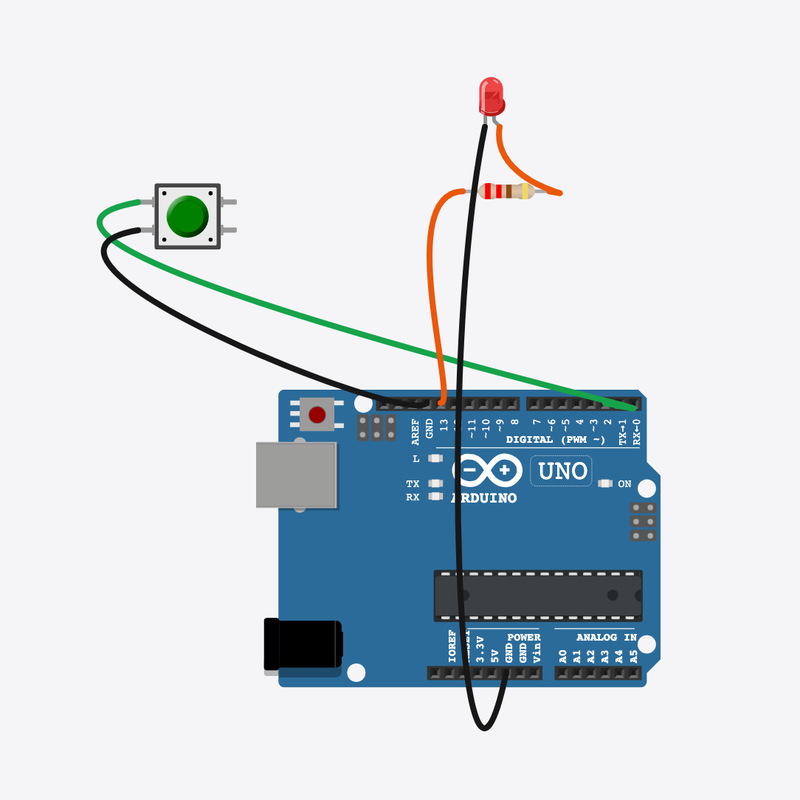
Pin connections
| Part 1 | Part 2 | |
|---|---|---|
Arduino pin 2 | → | Button pin 1 |
Button pin 2 | → | Arduino GND |
Arduino pin 13 | → | Resistor pin 1 |
Resistor pin 2 | → | LED anode (+) |
LED cathode (-) | → | Arduino GND |
Your code can listen!
Press the button — digitalRead() tells the Arduino what you did.
Every keyboard key and game controller button works this way.
The problem
Outputs alone cannot react — you need to read an input pin.
Think of it like
Like asking “Is the door open?” before turning on a light.
Runs your sketch
Arduino
Brain
Press to signal the Arduino
Button
Input
Protects the LED
Resistor
Safety
Mirrors button state
LED
Output
Read the button
digitalRead() returns HIGH or LOW. With INPUT_PULLUP, pressed means LOW.
bool pressed = (digitalRead(BUTTON_PIN) == LOW);
Mirror to the LED
The LED follows the button — on while you hold it, off when released.
digitalWrite(LED_PIN, pressed ? HIGH : LOW);
Small pause
A tiny debounce delay keeps readings stable, then loop() reads again.
delay(50);
Then loop back to step 1
Follow these steps in order. Match the wires to the colors shown.
Place Arduino
Place the Arduino (uno) on the breadboard.
Arduino placed!
Place Button
Place the Button (btn1) on the breadboard.
Place Resistor
Place the Resistor (r1) on the breadboard.
Place LED
Place the LED (led1) on the breadboard.
Connect Arduino pin 2 to Button (btn1) 1.l
Connect Arduino pin 2 to Button (btn1) 1.l.
Connect Button (btn1) 2.l to Arduino GND
Connect Button (btn1) 2.l to Arduino GND.
Connect Arduino pin 13 to Resistor (r1) 1
Connect Arduino pin 13 to Resistor (r1) 1.
Connect Resistor (r1) 2 to LED (led1) anode (+)
Connect Resistor (r1) 2 to LED (led1) anode (+).
Connect LED (led1) cathode (-) to Arduino GND
Connect LED (led1) cathode (-) to Arduino GND.
Input pull-up
void setup() {
  pinMode(BUTTON_PIN, INPUT_PULLUP);
  pinMode(LED_PIN, OUTPUT);
  Serial.begin(9600);
INPUT_PULLUP makes the pin HIGH until you press the button to GND.
digitalRead()
void loop() {
  bool pressed = (digitalRead(BUTTON_PIN) == LOW);
  digitalWrite(LED_PIN, pressed ? HIGH : LOW);
  Serial.println(pressed ? "Button pressed" : "Button released");
  delay(50);
Each loop pass reads the button and updates the LED and Serial monitor.
const int BUTTON_PIN = 2;
const int LED_PIN    = 13;
void setup() {
  pinMode(BUTTON_PIN, INPUT_PULLUP);
  pinMode(LED_PIN, OUTPUT);
  Serial.begin(9600);
}
void loop() {
  bool pressed = (digitalRead(BUTTON_PIN) == LOW);
  digitalWrite(LED_PIN, pressed ? HIGH : LOW);
  Serial.println(pressed ? "Button pressed" : "Button released");
  delay(50);
}
Q1. Where does repeating work belong?
Q2. With INPUT_PULLUP, what does digitalRead return when the button is pressed?
Slow the read loop — change delay(50) to delay(100).
Hint: Line 12 in loop().
Add a comment on the digitalRead line explaining “pressed = LOW”.
Hint: Line 9.
A line-by-line tour of the sketch — the same steps as in Robo Gurukul Studio.
Program overview
Technical
Sketches have globals, then setup() once, then loop() forever.
In this project
Toggle an LED with a pushbutton using internal pull-up resistor on pin 2.
Why here
Read from top to bottom. Hover words or lines for help!
const int BUTTON_PIN = 2;
const int LED_PIN    = 13;
setup()
Technical
Runs one time when the board turns on.
In this project
Sets up pins and libraries for Pushbutton.
Why here
One-time setup belongs here—not in loop().
void setup() {
  pinMode(BUTTON_PIN, INPUT_PULLUP);
  pinMode(LED_PIN, OUTPUT);
  Serial.begin(9600);
}
loop()
Technical
Runs again and again after setup() is done.
In this project
This is the main action you see in Pushbutton.
Why here
Repeating work (blink, read sensors) goes here.
void loop() {
  bool pressed = (digitalRead(BUTTON_PIN) == LOW);
  digitalWrite(LED_PIN, pressed ? HIGH : LOW);
  Serial.println(pressed ? "Button pressed" : "Button released");
  delay(50);
}
Try this: Change numbers in loop(), then compile and run the simulator.
pinMode
Technical
Tells a pin if it listens or drives something.
In this project
Gets the Pushbutton circuit ready in the simulator.
Why here
Goes in setup() because we only set pins once at the start.
pinMode(BUTTON_PIN, INPUT_PULLUP);
digitalWrite
Technical
Turns a pin ON or OFF.
In this project
Controls lights, motors, or buzzers in Pushbutton.
Why here
Goes in loop() so it can keep changing while the program runs.
digitalWrite(LED_PIN, pressed ? HIGH : LOW);
digitalRead
Technical
Checks if a pin is ON or OFF.
In this project
Reads buttons or sensors in Pushbutton.
Why here
Goes in loop() so we can react when something changes.
bool pressed = (digitalRead(BUTTON_PIN) == LOW);
delay
Technical
Waits for some time. Nothing else runs during the wait.
In this project
Controls speed so you can see Pushbutton in the simulator.
Why here
Right after an action that should stay the same for a moment.
delay(50);
begin
Technical
Starts talking to the computer screen (serial monitor).
In this project
Lets Pushbutton print debug messages.
Why here
Goes in setup() once before any Serial.print.
Serial.begin(9600);
println
Technical
Sends text to the serial monitor and starts a new line.
In this project
Prints one line of output for Pushbutton.
Why here
In loop() when each reading should appear on its own line.
Serial.println(pressed ? "Button pressed" : "Button released");