Runs your sketch
Arduino
Brain
Loading part…
display a counter value
Count 0-9 on a common-cathode 7-segment display controlled via 7 digital pins.
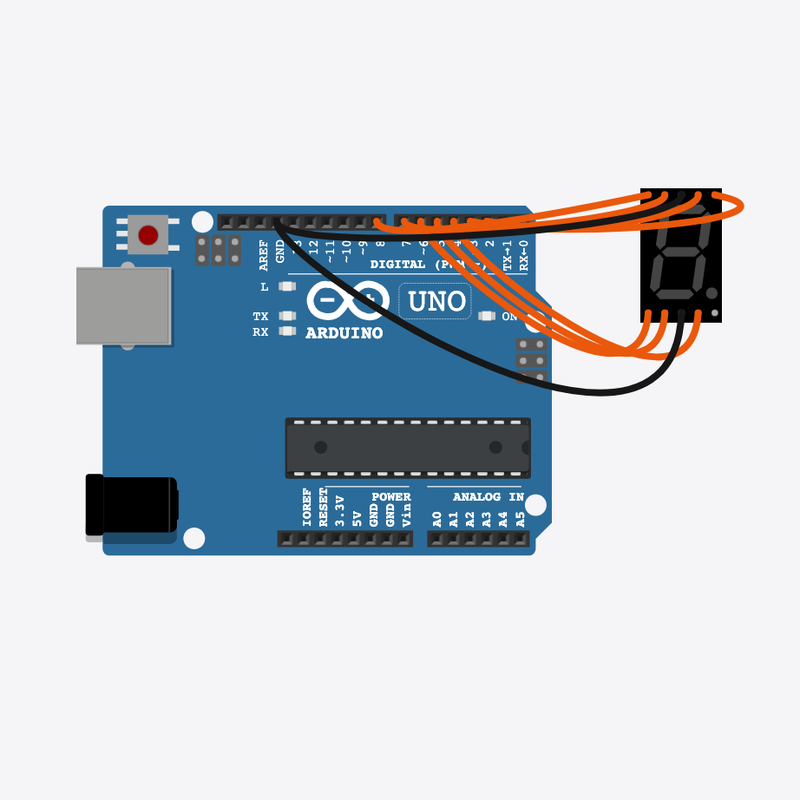
Pin connections
| Part 1 | Part 2 | |
|---|---|---|
Arduino pin 2 | → | 7-segment display seg A |
Arduino pin 3 | → | 7-segment display seg B |
Arduino pin 4 | → | 7-segment display seg C |
Arduino pin 5 | → | 7-segment display seg D |
Arduino pin 6 | → | 7-segment display seg E |
Arduino pin 7 | → | 7-segment display seg F |
Arduino pin 8 | → | 7-segment display seg G |
7-segment display COM | → | Arduino GND |
7-segment display COM | → | Arduino GND |
Light up digits 0–9!
A DIGITS[] table tells each segment ON or OFF — the display counts like a mini scoreboard.
Microwave timers, elevator floors, and digital clocks use 7-segment displays.
The problem
Showing a number needs seven tiny lights controlled together — not one LED.
Think of it like
Like drawing numbers with seven stick pieces — each digit has its own pattern.
Runs your sketch
Arduino
Brain
Shows digits 0 through 9
7-segment display
Display
Prepare segment pins
Pins 2–8 become outputs — one wire per segment A through G.
pinMode(SEG_A + i, OUTPUT);
Loop through digits
The for loop tries 0, then 1, then 2… up to 9 — a counter variable built into the loop.
for (int digit = 0; digit <= 9; digit++)
Light the pattern
DIGITS[digit] holds a bitmask; showDigit() turns each segment ON or OFF.
showDigit(digit);
Hold and repeat
Each digit stays visible for 800 ms, then the for loop shows the next one.
delay(800);
Then loop back to step 2
Follow these steps in order. Match the wires to the colors shown.
Place Arduino
Place the Arduino (uno) on the breadboard.
Arduino placed!
Place 7-segment display
Place the 7-segment display (seg1) on the breadboard.
Connect Arduino pin 2 to 7-segment display (seg1) anode (+)
Connect Arduino pin 2 to 7-segment display (seg1) anode (+).
Connect Arduino pin 3 to 7-segment display (seg1) B
Connect Arduino pin 3 to 7-segment display (seg1) B.
Connect Arduino pin 4 to 7-segment display (seg1) cathode (-)
Connect Arduino pin 4 to 7-segment display (seg1) cathode (-).
Connect Arduino pin 5 to 7-segment display (seg1) D
Connect Arduino pin 5 to 7-segment display (seg1) D.
Connect Arduino pin 6 to 7-segment display (seg1) E
Connect Arduino pin 6 to 7-segment display (seg1) E.
Connect Arduino pin 7 to 7-segment display (seg1) F
Connect Arduino pin 7 to 7-segment display (seg1) F.
Connect Arduino pin 8 to 7-segment display (seg1) G
Connect Arduino pin 8 to 7-segment display (seg1) G.
Connect 7-segment display (seg1) COM.2 to Arduino GND
Connect 7-segment display (seg1) COM.2 to Arduino GND.
Connect 7-segment display (seg1) COM.1 to Arduino GND
Connect 7-segment display (seg1) COM.1 to Arduino GND.
Segment patterns table
const uint8_t DIGITS[10] = {
  0b0111111,
  0b0000110,
  0b1011011,
  0b1001111,
  0b1100110,
  0b1101101,
  0b1111101,
  0b0000111,
  0b1111111,
  0b1101111,
};
DIGITS[] stores which segments glow for 0–9 — binary patterns like 0b0111111 for zero.
showDigit() helper
void showDigit(int digit) {
  uint8_t pattern = DIGITS[digit];
  for (int seg = 0; seg < 7; seg++) {
    digitalWrite(SEG_A + seg, (pattern >> seg) & 1);
  }
}
Loops seven segments and uses bit math to set each pin HIGH or LOW.
Count 0 to 9
void loop() {
  for (int digit = 0; digit <= 9; digit++) {
    showDigit(digit);
    Serial.println(digit);
    delay(800);
  }
}
loop() runs the for loop forever — display cycles through every digit.
const int SEG_A = 2;
const uint8_t DIGITS[10] = {
  0b0111111,
  0b0000110,
  0b1011011,
  0b1001111,
  0b1100110,
  0b1101101,
  0b1111101,
  0b0000111,
  0b1111111,
  0b1101111,
};
void showDigit(int digit) {
  uint8_t pattern = DIGITS[digit];
  for (int seg = 0; seg < 7; seg++) {
    digitalWrite(SEG_A + seg, (pattern >> seg) & 1);
  }
}
void setup() {
  for (int i = 0; i < 7; i++) {
    pinMode(SEG_A + i, OUTPUT);
    digitalWrite(SEG_A + i, LOW);
  }
  Serial.begin(9600);
  Serial.println("7-Segment Counter Demo");
}
void loop() {
  for (int digit = 0; digit <= 9; digit++) {
    showDigit(digit);
    Serial.println(digit);
    delay(800);
  }
}
Q1. Where does repeating work belong?
Q2. What does the for loop variable digit do?
Show each digit longer — change delay(800) to delay(1200) in loop().
Hint: Line 32 inside the for loop.
Add a comment on the pattern line explaining it comes from DIGITS[].
Hint: Line 15 inside showDigit().
A line-by-line tour of the sketch — the same steps as in Robo Gurukul Studio.
Program overview
Technical
Sketches have globals, then setup() once, then loop() forever.
In this project
Count 0-9 on a common-cathode 7-segment display controlled via 7 digital pins.
Why here
Read from top to bottom. Hover words or lines for help!
const int SEG_A = 2;
const uint8_t DIGITS[10] = {
  0b0111111,
  0b0000110,
  0b1011011,
  0b1001111,
  0b1100110,
  0b1101101,
  0b1111101,
  0b0000111,
  0b1111111,
  0b1101111,
};
void showDigit(int digit) {
  uint8_t pattern = DIGITS[digit];
  for (int seg = 0; seg < 7; seg++) {
    digitalWrite(SEG_A + seg, (pattern >> seg) & 1);
  }
}
setup()
Technical
Runs one time when the board turns on.
In this project
Sets up pins and libraries for 7-Segment Display.
Why here
One-time setup belongs here—not in loop().
void setup() {
  for (int i = 0; i < 7; i++) {
    pinMode(SEG_A + i, OUTPUT);
    digitalWrite(SEG_A + i, LOW);
  }
  Serial.begin(9600);
  Serial.println("7-Segment Counter Demo");
}
loop()
Technical
Runs again and again after setup() is done.
In this project
This is the main action you see in 7-Segment Display.
Why here
Repeating work (blink, read sensors) goes here.
void loop() {
  for (int digit = 0; digit <= 9; digit++) {
    showDigit(digit);
    Serial.println(digit);
    delay(800);
  }
}
Try this: Change numbers in loop(), then compile and run the simulator.
pinMode
Technical
Tells a pin if it listens or drives something.
In this project
Gets the 7-Segment Display circuit ready in the simulator.
Why here
Goes in setup() because we only set pins once at the start.
pinMode(SEG_A + i, OUTPUT);
digitalWrite
Technical
Turns a pin ON or OFF.
In this project
Controls lights, motors, or buzzers in 7-Segment Display.
Why here
Goes in loop() so it can keep changing while the program runs.
digitalWrite(SEG_A + seg, (pattern >> seg) & 1);
delay
Technical
Waits for some time. Nothing else runs during the wait.
In this project
Controls speed so you can see 7-Segment Display in the simulator.
Why here
Right after an action that should stay the same for a moment.
delay(800);
begin
Technical
Starts talking to the computer screen (serial monitor).
In this project
Lets 7-Segment Display print debug messages.
Why here
Goes in setup() once before any Serial.print.
Serial.begin(9600);
println
Technical
Sends text to the serial monitor and starts a new line.
In this project
Prints one line of output for 7-Segment Display.
Why here
In loop() when each reading should appear on its own line.
Serial.println("7-Segment Counter Demo");